How to Share a Digital Business Card: 7 Ways (QR, NFC, Link, Email, Text)
There are seven ways to share a digital business card: QR code, NFC tag, link, text message, email, email signature and QR code on a slide. The QR code and the link work on every phone and need no setup. Pick a way according to the situation: face to face, at a distance or in writing.
For the full picture, read the guide on how digital business cards work.
How to share a digital business card: the 7 ways
Publish your card first. Then open "My cards" and click "Share": the link and the QR code are there. The person who receives the card opens it in their phone's browser, saves your contact in one tap (vCard) and installs nothing.
1. QR code
Use it when: you stand in front of the person, at a meeting, a stand, a conference or a café.
Every card has a unique QR code. Show it on your phone screen: the other person points their camera at it and the card opens. You can also print the code, on a poster, a flyer, a badge holder or the back of a paper card. Check the size and the contrast before printing; the article on putting a QR code on a business card covers it.
2. NFC tag
Use it when: you want a tap instead of a scan, and you meet people in the same place every day: a desk, a counter, a stand.
Tap an NFC tag with your phone. If the tag is not linked yet, Piktechs asks you to sign in, then to choose the card it should open. From then on, every tap redirects to that card. Piktechs sells no physical NFC card: you link a tag that you already have. A third-party NFC sticker can also hold the link of your card, written like any web address. NFC works on recent iPhone and Android phones, and nothing forces you to use it.
3. Link
Use it when: the person is not in the room and you write to them in a chat, a message on a social network or a form.
Copy the link from the Share screen and paste it where you need it. The link opens the same card as the QR code. If you pick a custom address on Pro, the link is easier to read aloud and to remember.
4. Text message
Use it when: someone says "send me your details" and you hold your phone.
Send the link by SMS, iMessage or a messaging app such as WhatsApp. Add one line of context so the message is not a bare link: "Hi Sam, here is my card, as promised." The recipient taps the link and the card opens in their browser.
5. Email
Use it when: the exchange already happens by email, for example after a first call or a request for a quote.
Paste the link of your card in the body of the email, with a short sentence. Do not attach a file: a link opens in one tap and always shows the current details, while an attached file may get out of date.
6. Email signature
Use it when: you want every email you send to carry your card without thinking about it.
Copy the link of your card from the Share screen and paste it into the signature settings of your mail client, such as Outlook or Gmail. You can add the downloaded QR code image too. From then on, each email shares your card. The article on creating an electronic business card for your email signature goes through the steps.
7. QR code on a slide
Use it when: you speak to a room, at a talk, a webinar or a team meeting, and many people want your card at once.
Download the QR code of your card as an image and place it on your last slide, next to your name. Leave the slide up during the questions: everyone scans from their seat and nobody has to copy a link. The same image works on a screen at a stand or on a poster.
How to share a digital business card: summary table
| Way | Best when | Recipient needs |
|---|---|---|
| QR code | Face to face, or printed | A phone camera |
| NFC tag | Same place every day | A recent phone with NFC |
| Link | Chats, social messages, forms | A browser |
| Text message | Someone asks for your details | A browser |
| After a call or a request | A browser | |
| Email signature | Every email you send | A browser |
| QR code on a slide | Talks and meetings with a room | A phone camera |
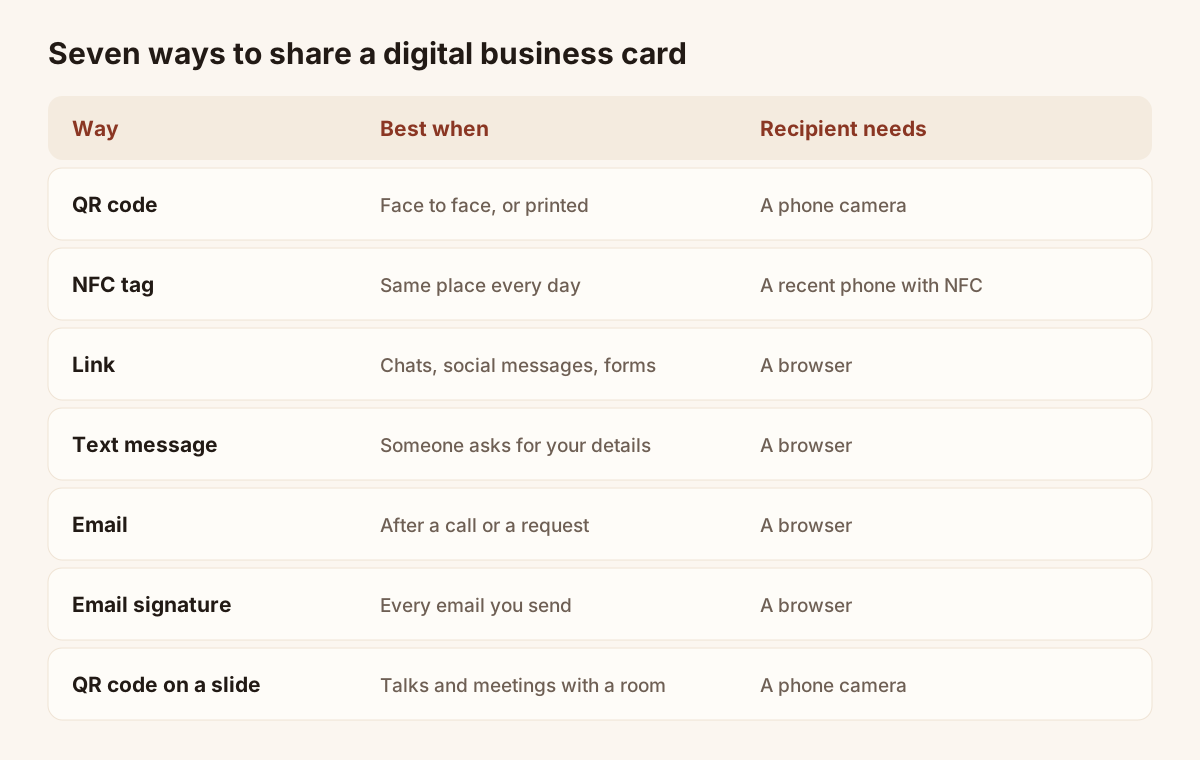
The seven ways to share a card at a glance.
How to send a digital business card to someone who is not with you
Four of the seven ways work at a distance: the link, the text message, the email and the email signature. Three habits make them work better.
- Send a link, not a file. The link opens a card that is always up to date. If your phone number changes, the card changes and nobody needs a new file.
- Add one line. Say who you are and why you send the card. A bare link looks like spam.
- Send it fast. Send the card within a day of the meeting, while the other person remembers you.
How to share digital business card details in person
Face to face, two ways cover most meetings: the QR code on your screen and, if you have set one up, an NFC tap.
- Open your card before the person asks. A card that takes thirty seconds to find loses the moment.
- Say "I will share my card". Hold the screen at their eye level, not at yours.
- Let them scan. If the scan fails, switch to the link by text message.
- Check that they saw the "Save contact" button, then move on to the conversation.
Get the other person's details back
Sharing goes one way unless you ask for something in return. Three options bring details back to you.
- A form on your card. The visitor leaves their details and answers your questions: need, budget, timeline. The answers arrive in your Contacts list with their source. Forms are a Pro and Team feature.
- The Lead Scanner. If the person gives you a paper card, you photograph it, check the fields and save. The Lead Scanner is a Pro and Team feature.
- Manual entry. In Contacts, click "Add contact" and type the details.
Without a form, the visitor can still save your contact, but you receive nothing. If you want the details back, put a form on the card.
Share a digital business card at a trade show
A stand adds one problem: ten people want your details at once. Two habits solve it.
- Display a QR code on the stand. Print the code of a card, or a card made for the show, on the table or a poster. Visitors scan it while you talk to someone else.
- Put a form behind it. The visitor leaves their details and a few answers. Each answer is saved on the lead, so each visitor's need is in Contacts when the show ends.
Leads captured without signal are kept and sent when the network returns, which helps in a hall with poor coverage. Piktechs does not read organiser badges. The page on trade show lead capture describes the flow, and the guide on trade show lead generation covers the rest of the show.
Update the card after sharing
You change a role or a phone number? Edit the card in "My cards" and save. The QR code, the link and the NFC tag keep pointing to the same card, so nobody needs to receive it again and nothing needs reprinting.
To create the card first, see Piktechs digital business cards. Plans and prices are on the pricing page.
Frequently asked questions
Which way to share a digital business card suits most people?
The QR code, face to face, and the link, at a distance. Both work on every phone, need no setup and need no app on the other side.
Do I need NFC to share a digital business card?
No. NFC is one way among seven. The QR code and the link work out of the box. If you want a tap, link an NFC tag to your card.
Can I share my card with someone who has no app?
Yes. The card is a web page. It opens in the browser of any phone, from a QR scan, a link or an NFC tag, and the person saves your contact in one tap.
How do I get the other person's details?
Put a form on your card, or scan their paper card with the Lead Scanner, or add them by hand in Contacts. Forms and the Lead Scanner are Pro and Team features.
Does Piktechs sell NFC cards?
No. Piktechs sells no physical NFC card. You can link an NFC tag you already have to your card, and a third-party sticker can hold your card's link.
Read next
 Guide
How Do Digital Business Cards Work? QR Codes, NFC, Links and vCards Explained
QR code, NFC, link or vCard: see how digital business cards work, how contacts get saved on iPhone and Android, and how leads follow.
 Article
How to Create a Digital Business Card (Step by Step, Free)
Create a free digital business card in 5 steps: pick a layout, add your links, share it by QR code or NFC. No app needed for the people you meet.
 Article
How to Create a Digital Business Card on Android
Create a digital business card on Android with the Piktechs app or your browser, share it by QR code, link or NFC tag and keep the contacts you meet.
 Article
How to Create a Digital Business Card on iPhone
Create a digital business card in Safari on your iPhone, add it to the Home Screen and share it by QR code, link or NFC tag. No app needed.
 Article
How to Make an Electronic Business Card for Your Email Signature
Create an electronic business card for Outlook or Gmail, and compare it with a live card link in your signature that shows views and contact saves.
 Article
Digital business card app: the features to look for
Which features a digital business card app must have, which are useful and which are gimmicks, with a table to check any offer against.
Create your digital card
The Free plan includes one live card. No app needed for the people who receive it.