How Do Digital Business Cards Work? QR Codes, NFC, Links and vCards Explained
A digital business card is a web page that holds your contact details, photo and links. You share it by QR code, NFC, link or email signature. The contact opens it in their browser, with no app, and saves your details to their phone. This guide describes each step of how it works.
Use it as a reference: the contents list takes you to any point. For one support in depth, see the guide to business cards with a QR code and the one on NFC business cards.
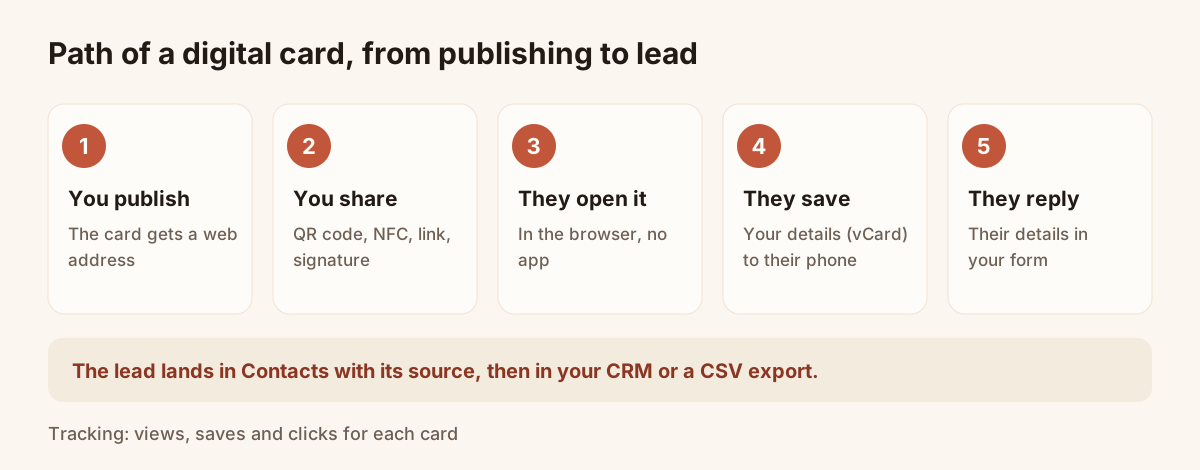
The path of a card, from publishing to lead.
How do digital business cards work?
How digital business cards work comes down to four moves. You publish a card, you share its address, the contact opens it in a browser, and the contact saves your details or answers your form. Nothing is sent as a file, and nobody installs anything.
- Publish. You fill in a card in your Piktechs account: photo, name, job title, company, contact details and links. Once published, the card has a public web address.
- Share. The address travels on a support: a QR code, an NFC tag, a link, or an email signature. All of them open the same card.
- Open. The contact scans, taps or clicks. The card displays in the browser of their iPhone or Android phone, with no account.
- Save and reply. One button saves your details as a native contact, through the vCard format. If the card carries a form, the person can also leave their own details.
The last step turns a card into a lead. On Pro and Team, the answers land in Contacts, with the source, and can be synced to your CRM. The sections below take each move in turn. Need the plain definition first, in the complete guide to the digital business card?
Digital business card: definition
A digital business card is a personal web page, hosted at a public address. It does the job of a business card: it presents your identity, your role and your ways to get in touch. It displays on a phone, a tablet or a computer.
The wording varies. People say digital business card, electronic business card, virtual card, smart card or NFC card. The principle is the same each time: the card is not a file you send, it is an address you share.
An address, not a file
This difference explains most of the features. Because the card lives at a web address, it can:
- be updated without anyone receiving a new copy;
- open from several supports (QR code, NFC chip, link, signature) that all point to the same page;
- count the opens and the clicks;
- offer a form to the person who views it.
With Piktechs, the QR code, the link and the NFC tag always point to the same card. If you change role or number, the update is live as soon as you save, and nothing needs reprinting.
It is not an app
The person who receives your card installs nothing. The card opens in the browser of any recent phone. On your side, you create and manage your cards from your Piktechs account, in your browser.
Content of a digital business card
A card is made of blocks you choose. Keep the ones that serve your trade and drop the rest.
Identity and contact details
The core of the card includes:
- a photo, or a logo for a company card;
- your name, job title and company;
- a short introduction;
- your phone number, email and website.
The same details are copied into the other person’s address book. Put in the number and the address you really want to receive.
Links and social profiles
You add your social profiles and the links that help a first contact: professional profile, website, booking page. Keep few of them. Three or four well-chosen links read better than a list of twelve.
Style and branding
The card takes the look of a template: layout, colours, typography. The Free plan offers 3 layouts and 5 themes. Pro and Team add custom colours, logo, banner, a gallery, reviews, directions and an appointment block, and remove the Piktechs badge.
Reply form
A card can also ask questions to the person who views it. This block, the form, is described further down. It is limited to the Pro and Team plans.
| Card block | Role | Plan |
|---|---|---|
| Photo, name, job title, company | Identify the person | Free, Pro, Team |
| Phone, email, website | Let people reach you | Free, Pro, Team |
| Social profiles and links | Extend the first contact | Free, Pro, Team |
| Colours, logo, banner | Apply your branding | Pro, Team |
| Gallery, reviews, directions, appointments | Give proof and ease the meeting | Pro, Team |
| Qualification form | Collect the other person’s details | Pro, Team |
How to share a digital business card
Sharing a card means giving someone its address. The article on how to share a digital business card goes through each way in detail. Several supports do it, and they combine. None replaces the others: the right choice depends on the situation.
Before any sharing, the card must be published. In “My cards”, the “Share” button opens the link and the QR code of a published card. Drafts stay invisible.
QR code
Each card has its own QR code. The contact scans it with the phone camera and the card opens. You can show it on your screen, print it on a poster, place it on a stand or on a paper support. The guide to business cards with a QR code covers size, contrast and tests before printing, and the article on putting a QR code on a business card gives size and placement rules.
The QR code needs no special hardware. It sets up with no purchase, and it also works at a distance, in a video call or on a projected slide.
NFC
NFC is communication over a very short range. A chip holds the address of your card. When the contact brings their phone close, the card opens. Recent iPhone and Android phones read NFC, provided the feature is switched on.
Piktechs does not sell a physical NFC card. In the app, an NFC tag is linked to one of your cards: you hold the tag to your phone, sign in, then choose the card it should open. After that, every tap redirects to that card. NFC is optional: the QR code and the link work from the start. Supports, compatibility and limits are covered in the guide to NFC business cards.
Link
The link is the address of the card. You paste it in a message, a chat app, a social profile or an introduction email. On Pro and Team you can choose a custom address that is easier to remember. Team adds your own domain, for example cards.your-company.com.
Email signature
An email signature shows your card in every message you send. You copy the link of the card from the “Share” button, then paste it into the signature settings of your own mail client, such as Outlook or Gmail. The recipient clicks and lands on the same page as the QR code.
| Method | Hardware | Typical situation | Point of attention |
|---|---|---|---|
| QR code | None, a screen or paper | Stand, meeting, presentation | Test legibility |
| NFC | A tag or a card with a chip | Handshake, counter | Compatible phone, NFC on |
| Link | None | Message, social profile, email | None, it has to be pasted |
| Email signature | None | Email exchanges | Check layout in the email client |
How to use a digital business card
To use a digital business card, you pick the support that fits the moment, hand over the address and let the contact do the rest. The routine is short and the same on every support.
- Face to face. Open the card on your phone and show the QR code, or let the contact tap an NFC tag. Wait a few seconds for the card to load, then point to the save button.
- At a distance. Paste the link in a message, a chat or an introduction email. In a video call or a talk, show the QR code on a slide.
- In every email. Add your card to your email signature once. Each message then carries it.
- On paper. Print the QR code of the card on a paper card or a flyer, so the person can reach the live version.
Before your first use, test the card as a recipient would: scan the code with another phone, open the link and save the contact. After the meeting, open Contacts to see who answered the form, set a priority and schedule a follow-up reminder. Forms, Contacts and statistics are Pro and Team features. A Free card still shares and saves a contact, which is enough to start.
On the recipient’s side: opening the card and saving the contact
How a card works is also judged from the side of the person who receives it. If the experience is heavy, they give up. Piktechs keeps it short.
Opening in the browser
The contact scans, taps or clicks. The card displays in their browser like any web page. They need no account and no app. The page adapts to the screen size.
Saving the contact in one tap
A button offers to save the contact. It relies on the vCard, a standard contact format read by iOS and Android phones. The article on how to create a vCard explains the format and its limits. The person gets a native entry in their address book, with:
- your name, job title and company;
- your photo;
- your numbers and your email;
- your links.
The entry is local: it lives in the person’s address book, and they edit it like any other contact. It no longer depends on your card once saved. If you later change number, the online card updates, but the entry already saved in the address book stays as it was.
Steps on the contact’s side
- The person scans the QR code, holds their phone to the NFC tag or opens the link.
- The card displays in the browser.
- They tap the save button.
- They confirm the addition to their address book.
- If a form is present, they leave their details.
The reply form: collecting the other person’s details
A classic card gives your information to the other person. It tells you nothing about them. The form fills that gap.
Principle
On a card with a form, the person answers your questions from the page: name, email, company, need, timing. The answers are saved on a lead. In your account you then see who opened your card and agreed to introduce themselves. The form is limited to Pro and Team.
Building a form
In “Forms”, you follow five steps:
- Create a new form and name it.
- Add fields: text, email, phone, choice.
- Link some fields to the contact’s details (name, email, company). The others become qualification questions.
- Split a long form into steps.
- Check the preview, then save.
Then you choose the form for each card in the “Card management” tab, or in the “Settings” tab of the card editor.
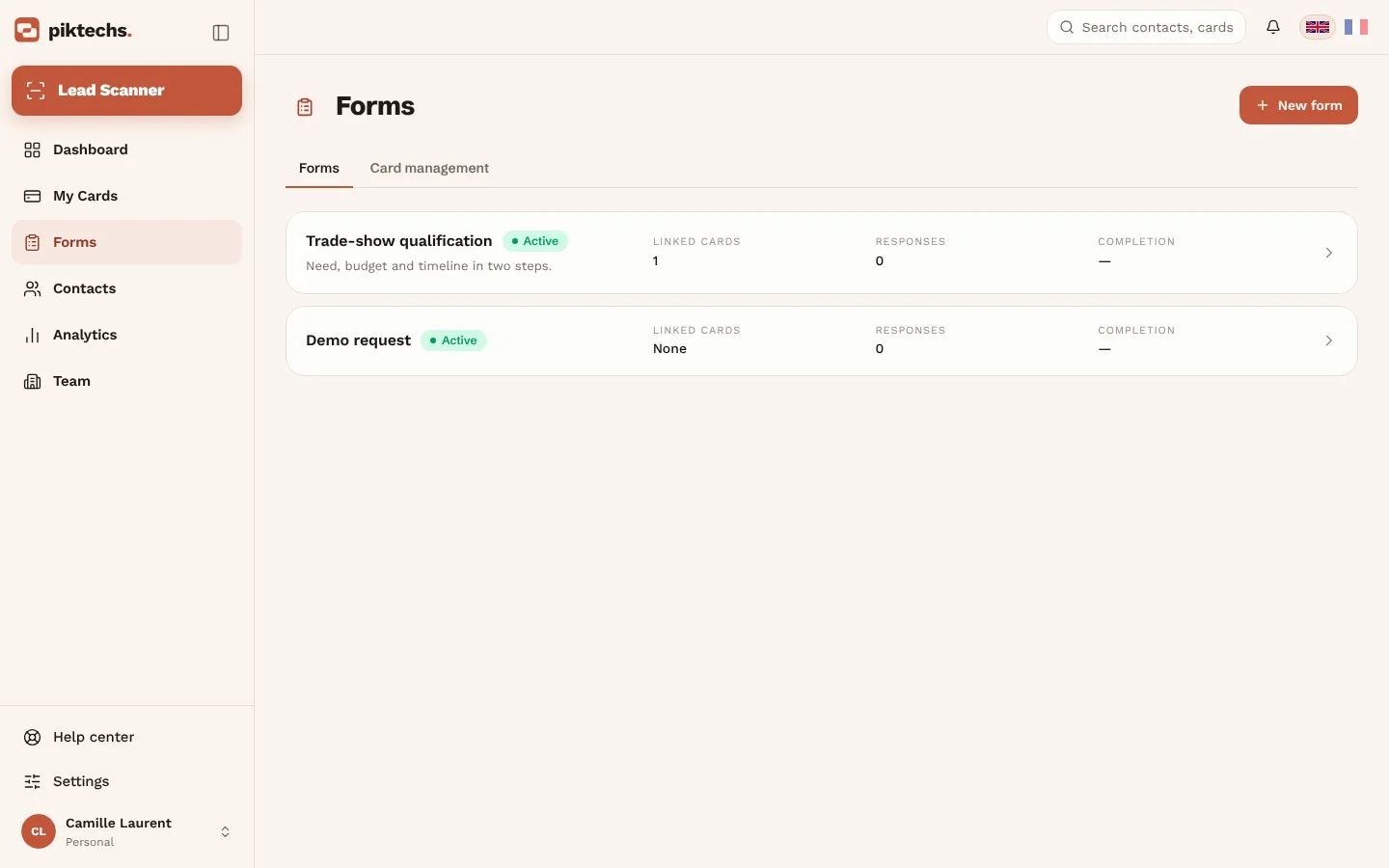
Piktechs screen, sample data.
Where the answers go
Leads land in Contacts, a single list that gathers scanned cards, manual entries and form answers, each with its source. There you set a priority and tags, add a note or a voice note (recorded, not transcribed) and schedule a follow-up reminder.
If the person has no signal when they answer, their lead is queued on their phone and sent when the connection returns.
To your CRM
Piktechs is not a CRM and does not replace one. It captures and qualifies, then feeds the tool your company already uses. HubSpot and Odoo connect directly. Zapier and Make go through a webhook. Without a CRM, the CSV export of contacts is enough to work. An owner or an admin of the workspace connects the tool in Team → Integrations.
Digital business card statistics
A paper card does not tell you how many people read it. An online card can.
Data available
Piktechs statistics show, for each card:
- views;
- saved contacts;
- clicks on links;
- new leads.
Statistics are part of the Pro and Team plans. A notification tells you when a visitor leaves their details.
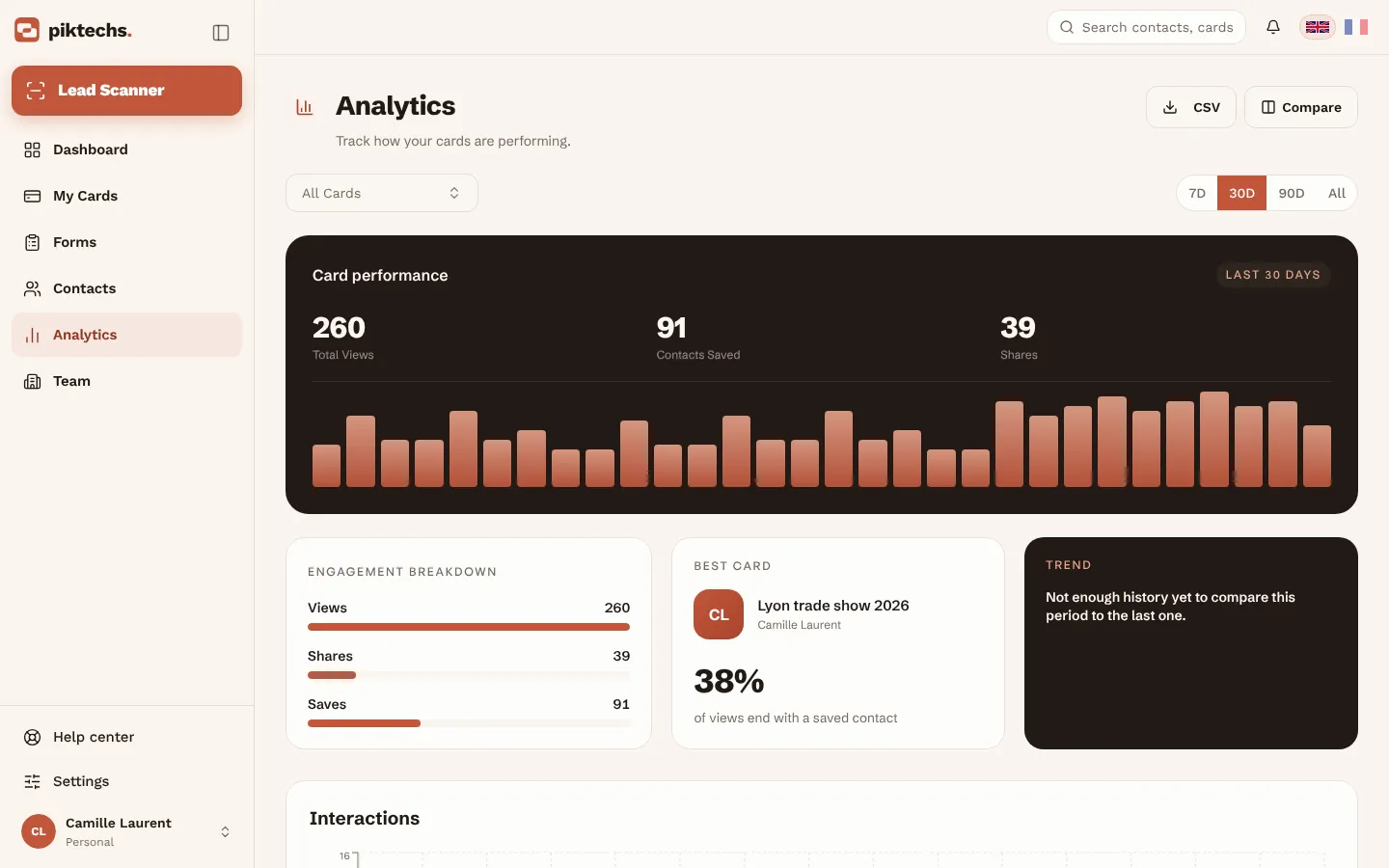
Piktechs screen, sample data.
Reading the numbers
Use the numbers to compare your own cards with each other. A card that is opened often but rarely saved suggests content to clarify. A card that is saved but never clicked suggests poorly chosen links. These readings are hints. Do not compare any figure with an outside benchmark.
Linking views to leads
Note the support and the date of your important sharing moments, a trade show for instance. If you add the show name as a tag during qualification, you can later find the event’s leads and export them as CSV. The article on the digital business card for field sales describes this routine day to day.
Digital business card and paper card: complementary uses
The digital card does not stand against the paper card. The two sit side by side, and each has its moments.
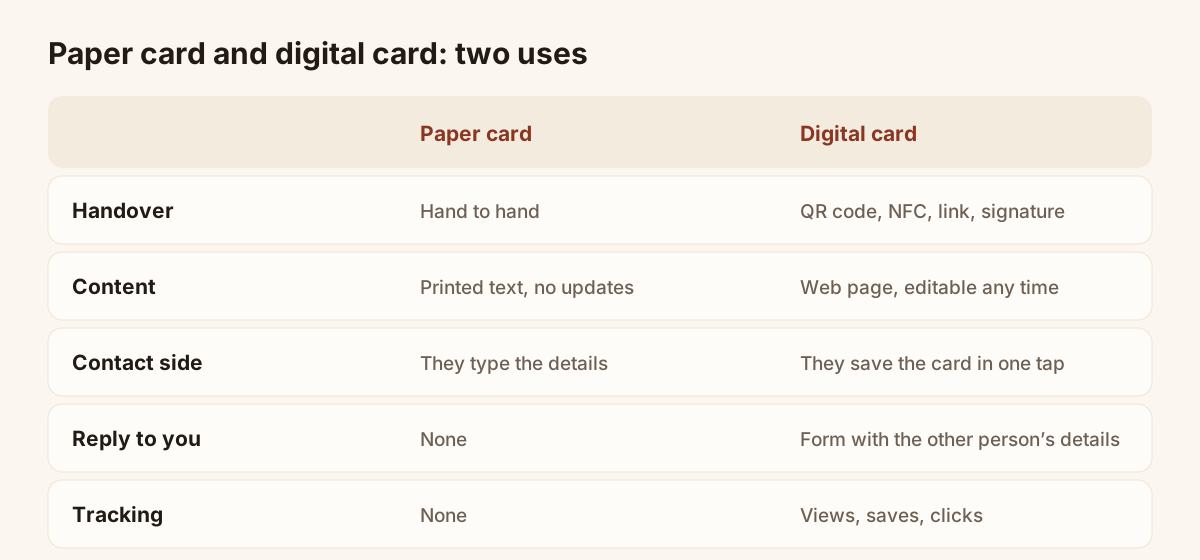
Handover, content, reply and tracking for each support.
When the paper card fits
A paper card is handed over with no screen, no battery and no signal. It marks a moment, it stays on a desk, and some contacts expect one. You can keep handing them out. The Piktechs Lead Scanner also reads the ones you receive, then files the contact in Contacts.
When the digital card adds more
The digital card takes over when you want the information to stay current, to land directly in the other person’s address book and to bring back their details. It also works at a distance: a QR code projected during a talk reaches the whole room.
Combining both
A common practice is to print the QR code of your card on your paper card. The contact keeps a physical object and reaches the online version when they need it. The guide to business cards with a QR code gives the placement rules.
Digital business card: free or paid
A digital card can be free. With Piktechs, the Free plan asks for no bank card and has no time limit.
Piktechs plans
| Plan | Price | Live cards | Key points |
|---|---|---|---|
| Free | EUR 0, no time limit | 1 | QR code, NFC, link, contact saving |
| Pro | EUR 9 per month or EUR 84 per year | 5 | Forms, Contacts, Lead Scanner, statistics, CRM sync |
| Team | EUR 15 per seat per month, 3 seats minimum | 5 per seat | Team branding, own domain, roles, lead assignment |
| Organisation | On quote | 5 per seat | Several teams, one contract, invoice |
Pro and Team open a 14-day trial, with no commitment. If you cancel before it ends, nothing is charged. The trial is limited to a first subscription. The detail is on the pricing page.
Drafts and live cards
Drafts are unlimited on every plan. Only published cards count towards the limit. You can try several styles before publishing.
If the subscription stops
You go back to Free: one card stays live, the others go offline and Pro features are suspended. If you return within 90 days, your cards are restored as they were.
Choosing a plan
A person who only wants to share contact details starts on Free. One who wants to capture leads, qualify them and sync them moves to Pro. A team of three or more picks Team. To compare options on the market before deciding, the article on choosing a digital business card offers a grid of criteria. To ask whether a dedicated app is needed, read the article on the digital business card app.
Digital business cards for a team
In a team the subject changes: you need consistent cards, a clear split of leads and a view of the whole.
One brand for every card
The Team plan offers a locked brand kit: colours, logo and layout are fixed for all cards. Each rep fills in their profile and leaves the style alone. When the brand changes, the update spreads to all cards at once.
A shared card pool
Cards are managed from one pool. You assign a card to a member and add users at any time. Each seat includes 5 cards. A seat added is billed pro rata immediately, a seat removed takes effect at the end of the paid period.
Lead assignment, roles and rights
Each lead goes back to the rep who shared their card. On Team, a lead is assigned to a member or a group, and roles and permissions decide who sees which data. An owner or an admin invites members by email, from Team → Members.
Several teams
When several teams share a card pool under one contract, with billing by invoice, the Organisation plan fits. It is priced on quote.
To see how a field team uses all this day to day, read the article on the digital business card for field sales. The digital business cards product page presents team branding and the card pool.
Creating your card step by step
Creating a card takes a few steps. The article on how to create a digital business card details them with screenshots. In short:
- In “My cards”, click “New Card”.
- Fill in your profile: photo, name, job title, company.
- Add your contact details and your links.
- Pick a style.
- Save, then click “Publish”.
- Open “Share” to get the link and the QR code.
Always test the card on another phone before you circulate it: scan the QR code, open the link and save the contact as a recipient would.
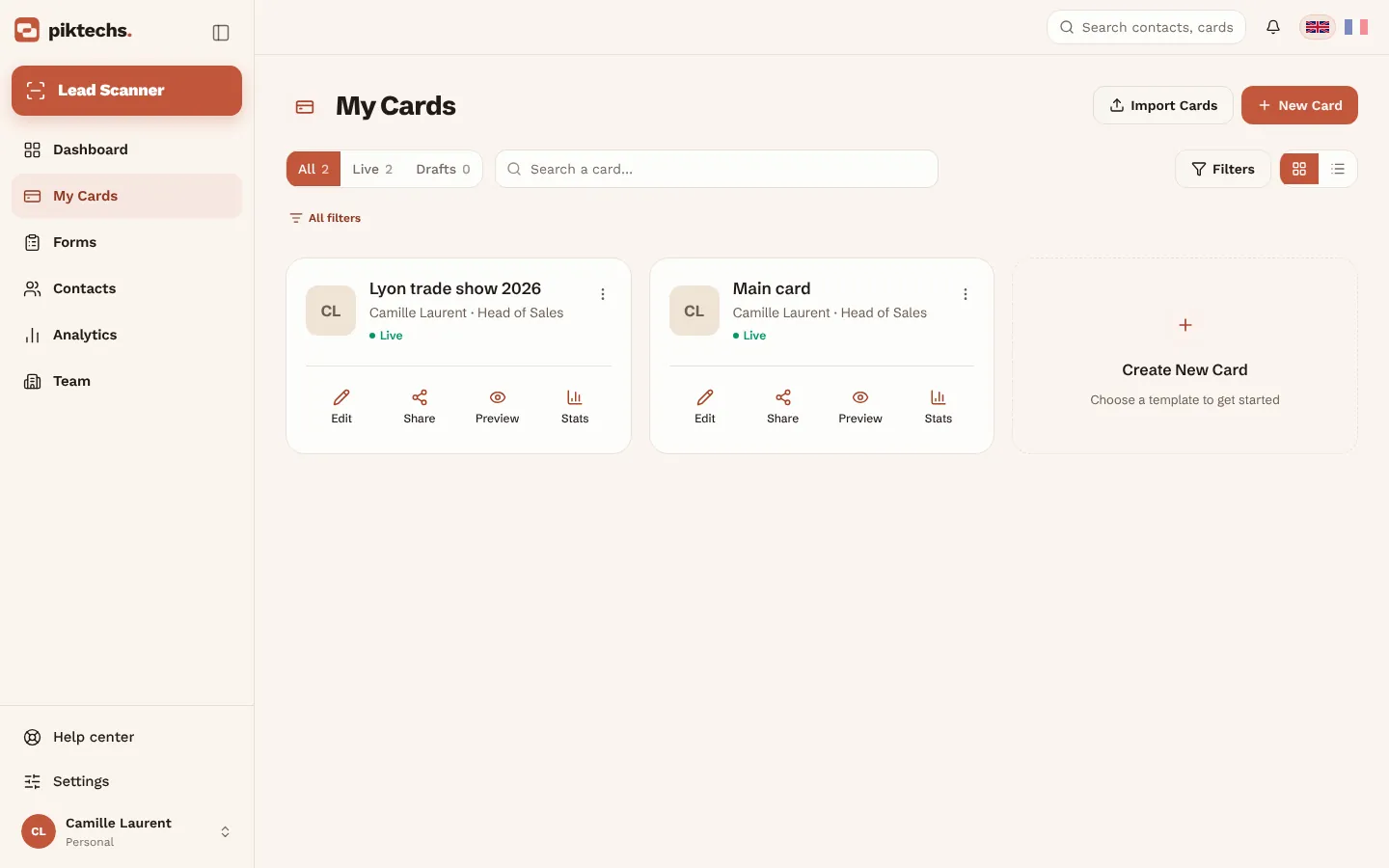
Piktechs screen, sample data.
Personal data and GDPR for a digital card
A digital card handles personal data: yours, and that of the people who answer the form. The principles below are general. They do not replace a lawyer’s advice for your situation.
Your own data
The information on the card is public by nature: anyone with the address can read it. Put in only the details you accept to see known. A draft or a card taken offline is not displayed. Taking a card offline deletes nothing: you can publish it again.
Data from the people who answer
A person who fills in your form entrusts you with data. Tell them how you use it, how long you keep it and how to have it erased. Piktechs records GDPR consent with each lead, and hosts the data in the European Union.
Export and deletion
You export your contacts as CSV at any time from Contacts. You delete your account from its settings: deletion permanently erases your cards and contacts and cancels any active subscription. If you own a team with members, delete the team or remove its members first.
Good practice
- Ask for few fields: only those your follow-up needs.
- Write one clear sentence under the form explaining how answers are used.
- Delete contacts that no longer serve a purpose.
- For commercial prospecting, check the applicable legal basis with your lawyer.
Common mistakes with a digital card
A few mistakes come back often. They are easy to fix.
- Card not published. The QR code or the link leads to an empty page. Publish before sharing.
- Unreadable QR code. A code that is too small or too faint does not scan. Test with two phones.
- Too many links. The person clicks on nothing. Keep the three or four that matter.
- Wrong number. It will be copied into the other person’s address book. Re-read it before publishing.
- Form too long. The person drops out before the end. Ask for the essentials and split into steps.
- No follow-up. A lead left alone goes cold. Schedule a reminder at qualification.
Frequently asked questions
How do digital business cards work on iPhone and Android?
The contact scans the QR code, taps the NFC tag or opens the link. The card opens in the phone’s browser, on iPhone and on Android, and a button saves your details as a native contact. No app is installed on their side.
Do I need to give up paper business cards?
No, there is no need to choose. The two serve different moments. A paper card is handed over with no screen, while a digital card updates, saves to the address book and brings back the other person’s details. You can use both, with the QR code of the card printed on the paper.
Does the person who receives my card need to install an app?
No. The card opens in the browser of any phone, after a QR code scan, an NFC tap or a click on a link. The contact is then saved in one tap, thanks to the vCard.
Is a digital business card free?
Yes, a card can be. The Piktechs Free plan gives one live card with QR code, NFC, link and contact saving, with no bank card and no time limit. Forms, statistics and CRM sync need Pro (EUR 9 per month or EUR 84 per year) or Team.
Do I need an NFC card to use a digital card?
No. The QR code and the link work from the start. NFC is one more way, on recent iPhone and Android phones. Piktechs does not sell a physical NFC card: an NFC tag is linked to one of your cards from the app.
If I change my number, do I need to share my card again?
No. The QR code, the link and the NFC tag always point to the same card, and the update is live as soon as you save. People who already saved your details to their address book keep the old version: let them know if the change matters.
Read next
 Article
Digital business card app: the features to look for
Which features a digital business card app must have, which are useful and which are gimmicks, with a table to check any offer against.
 Article
A digital business card for field sales reps
Functions of a field sales rep’s digital business card: share in meetings, bring back a form, trigger follow-ups and be managed across the whole team.
 Article
How to Create a Digital Business Card on Android
Create a digital business card on Android with the Piktechs app or your browser, share it by QR code, link or NFC tag and keep the contacts you meet.
 Article
Are Digital Business Cards Worth It? Costs, ROI, Pros and Cons
Paper vs digital business cards: costs, a method to work out ROI with your own numbers, pros and cons, and who should switch.
 Article
What Is a Digital Business Card? The Complete Guide
Definition of a digital business card, how it works and how it compares to paper. Plus how to create your own free card in minutes.
 Article
How to Create a Digital Business Card on iPhone
Create a digital business card in Safari on your iPhone, add it to the Home Screen and share it by QR code, link or NFC tag. No app needed.
 Article
Are Digital Business Cards Safe? Privacy, Security and GDPR
Check the data a digital business card shares, who can see it, and how to stay GDPR compliant when you collect leads with a card or a QR code.
 Article
How to Make an Electronic Business Card for Your Email Signature
Create an electronic business card for Outlook or Gmail, and compare it with a live card link in your signature that shows views and contact saves.
 Article
How to Create a Virtual Business Card for Email, Zoom and LinkedIn
Make a virtual business card you can share on Zoom, Teams, LinkedIn and email. Step-by-step guide with a free card and QR code tips.
 Article
Digital Business Cards for Teams: Brand, Manage and Track Every Card
Roll out digital business cards to your whole team: one locked brand kit, roles, lead assignment and stats per card, from EUR 15 per seat.
 Article
Best Digital Business Card Apps, Compared Honestly
We compare the best digital business card apps on price, CRM sync, team features and GDPR, so you can pick the right one.
 Article
How to Create a Digital Business Card (Step by Step, Free)
Create a free digital business card in 5 steps: pick a layout, add your links, share it by QR code or NFC. No app needed for the people you meet.
 Article
How to Create a Contact Card on iPhone and Android (and Share It)
Set up your contact card on iPhone or Android, share it with NameDrop or a QR code, and know when a digital card works better.
 Article
How to Update a Digital Business Card (No Reprint Needed)
Changed jobs, phone number or title? Update your digital business card in seconds: every QR code and link you have shared stays valid.
 Article
How to Share a Digital Business Card: 7 Ways (QR, NFC, Link, Email, Text)
QR code, NFC tag, link, text, email, signature, QR code on a slide: 7 ways to share a digital business card and get details back.
Create your digital card
The Free plan includes one live card. No app needed for the people who receive it.