How to Update a Digital Business Card (No Reprint Needed)
To update a digital business card, open it in "My cards", click "Edit", change the field and save. The change goes live at once. The QR code, the link and the NFC tag you already shared point to the same card, so nothing has to be reprinted or sent again.
That is the main difference from paper. A printed card is frozen on the day it leaves the printer. A digital card is a page that you can edit, and the guide to how digital business cards work explains why the code and the link do not change when the page does.
How to update a digital business card
The steps in Piktechs take about a minute:
- Open "My cards".
- Find the card and click "Edit".
- Change the fields concerned: photo, name, job title, company, phone number, email address, social links, style.
- Save. The changes go live as you save.
Check the card afterwards, as a visitor would see it. Open the link on your phone, in a private browser window, to confirm the new details show. If you changed a phone number, tap it to make sure it dials the right number.
Two details are worth knowing:
- A draft is not a live card. A card that is not published cannot be opened by anyone else. If you edit a draft, click "Publish" when you are ready. Drafts are unlimited on every plan, and only published cards count toward the limit of your plan.
- Taking a card offline deletes nothing. If you want a card to stop showing during a change, you can take it offline, edit it and publish it again later.
For a first card, start with how to create a digital business card.
Change a job title, a phone number or a company
These are the three edits that come up most. Each one follows the same path, but each has a small trap.
| Change | Point to check |
|---|---|
| Job title | Match your email signature and your LinkedIn profile |
| Phone number | Tap it on the card to check the dial |
| Company | Update the logo, the style and the website link |
The job title is the field that people copy into their CRM, so a vague title travels far. Use a plain title that matches your signature.
For a new employer, check every link on the card, not only the name. The old website link and the old social pages are easy to forget. Review the form too, if you use one on a Pro plan: the questions that suited your last role may not suit the new one.
QR code, link and NFC tag after an update
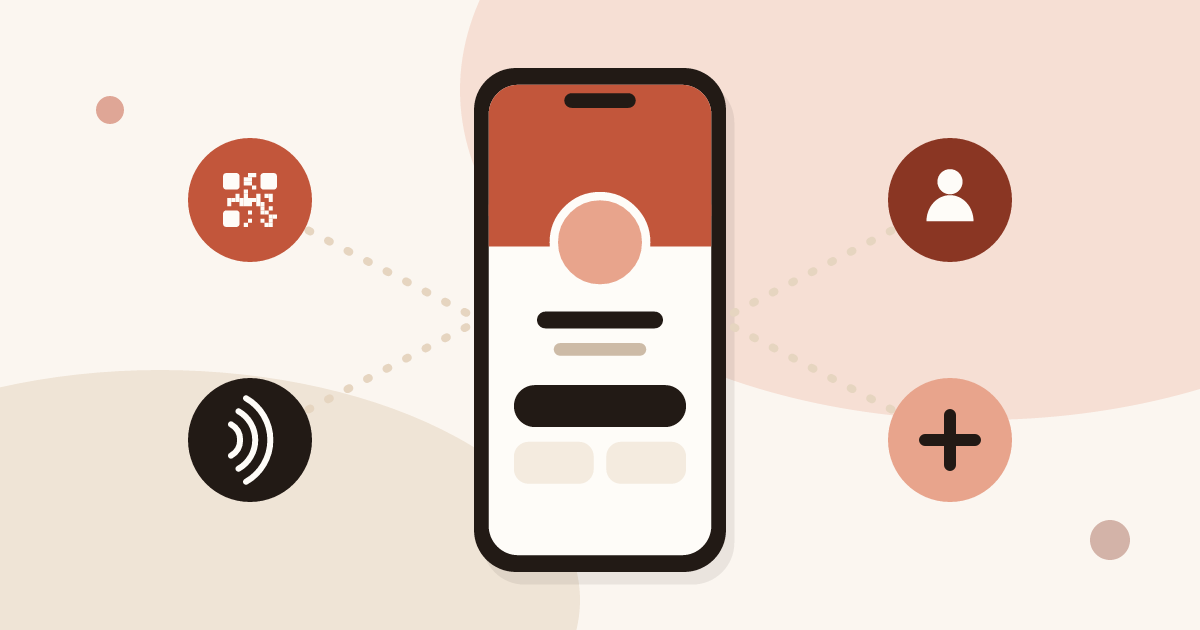
Each way of sharing your card keeps pointing to the same card.
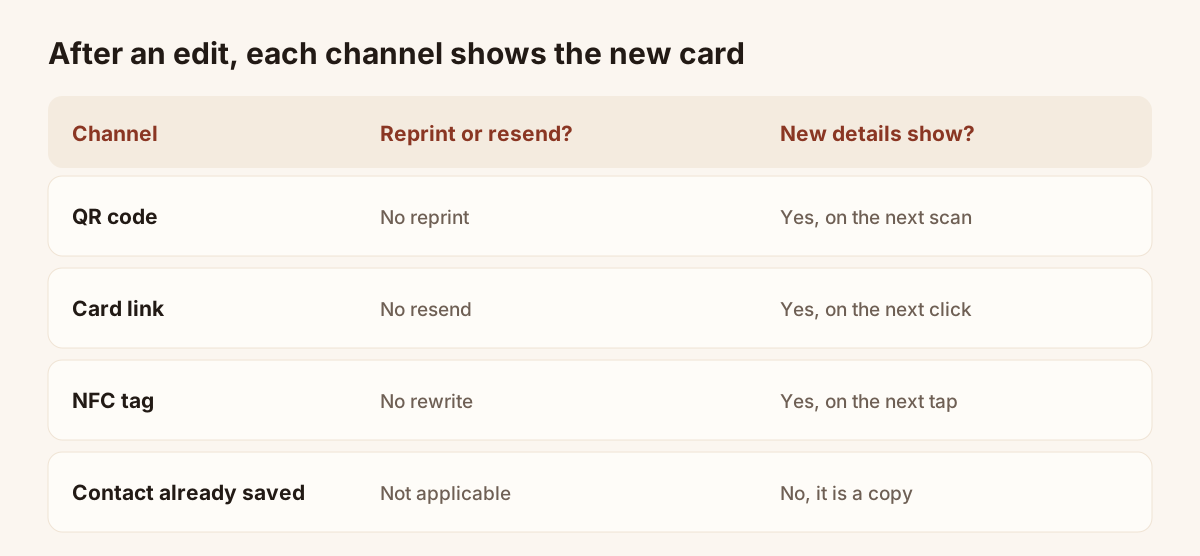
The QR code, the link and the NFC tag keep pointing to the same card. The update is live instantly, without reprinting anything. This holds for each channel:
- QR code. The code holds the address of your card, not your details. You edit the card, not the code. A code printed on a flyer, a badge holder or the back of a paper card stays valid. The article on the QR code business card generator compares static and dynamic codes.
- Link. The link you pasted in an email, a LinkedIn profile or a message opens the new version the next time someone clicks it.
- NFC tag. A tag already linked to your card keeps opening it. You do not rewrite the tag.
- Email signature. The signature carries the link, so it needs no rebuild. If you switch to a different card, paste the new card link into your mail client's signature.
One thing does not update. A contact who saved your details to their phone earlier holds a copy, as with any saved contact. The new number appears on the card page, not inside the contact already saved. If the change matters, say it in a short message and give the link, so they can save the new version.
A custom card address, available on Pro, is part of the link. Avoid changing it without a test, because links already shared may depend on it.
Update several cards at once
If you manage more than one card, the work multiplies. Two situations are common:
- You have several cards of your own. Pro allows five live cards. Edit each one the same way. Use the same change on all of them, such as a new phone number, then check each page.
- A team. On a team workspace, each member has their own cards, and the brand kit locks colours, logo and style on every card, so a change of logo is made once for the whole team. The article on digital business cards for teams goes through brand, roles and management.
The "Import cards" function in "My cards" creates one card per row of a CSV file, within the limit of your plan. It is a way to create several cards, not to change existing ones.
How to get digital business cards
If you are reading this because you do not have a card yet, the quickest route is to create your own. Sign up with your email address, create a card in "My cards" and publish it. The Free plan gives you one live card, without time limit and without a credit card.
Piktechs does not sell a physical NFC card. You share the card with a QR code or a link, which you can also place in your email signature, and the person who receives it installs nothing. If you already own an NFC tag, you can link it to your card: tap it with your phone, sign in, and choose the card it should open.
Start with a free card, test the update on your own phone, then decide whether you need more cards or the Pro features. You can see the plans on the pricing page, and the digital business cards page describes the product.
Frequently asked questions
Can I update a digital business card after sharing it?
Yes. Edit the card and save. The QR code, the link and the NFC tag you shared point to the same card, so the new details show the next time someone opens it.
Do I need to reprint my QR code after editing the card?
No. The code holds the address of your card, which does not change when you edit your details. Reprint only if you want a new design for the code itself.
Will people who already saved my contact get the update?
No. A contact saved on a phone is a copy. People who saved it earlier keep the old details until they save the new version from your card. Send them the link if the change matters.
How long does an update take to show?
The changes go live as you save. Reload the card on your phone to check them.
Can I take a card offline while I edit it?
Yes. Taking a card offline deletes nothing, and you can publish it again later. Editing a published card does not require it, because changes go live as you save.
Read next
 Guide
How Do Digital Business Cards Work? QR Codes, NFC, Links and vCards Explained
QR code, NFC, link or vCard: see how digital business cards work, how contacts get saved on iPhone and Android, and how leads follow.
 Article
How to Share a Digital Business Card: 7 Ways (QR, NFC, Link, Email, Text)
QR code, NFC tag, link, text, email, signature, QR code on a slide: 7 ways to share a digital business card and get details back.
 Article
How to Create a Digital Business Card on Android
Create a digital business card on Android with the Piktechs app or your browser, share it by QR code, link or NFC tag and keep the contacts you meet.
 Article
How to Create a Digital Business Card on iPhone
Create a digital business card in Safari on your iPhone, add it to the Home Screen and share it by QR code, link or NFC tag. No app needed.
 Article
Digital business card app: the features to look for
Which features a digital business card app must have, which are useful and which are gimmicks, with a table to check any offer against.
 Article
A digital business card for field sales reps
Functions of a field sales rep’s digital business card: share in meetings, bring back a form, trigger follow-ups and be managed across the whole team.
Create your digital card
The Free plan includes one live card. No app needed for the people who receive it.