Card scanner for phone: 3 ways to scan a business card
There are three ways to scan a business card with your phone: the plain camera, a dedicated scanning app, or an app connected to your CRM. The camera leaves you retyping every field. The other two fill the fields for you. Only the last one sends the contact where your team works.
For the full picture, read the complete guide: scanning business cards.
The three ways to scan a business card
All three start the same way: you take out your phone and frame the card. Only the next step differs.
- The phone camera. You keep a picture in your gallery. Nothing is read. To call or email the person, you retype the name, email and number into your contacts.
- A dedicated card-scanning app. The app reads the card and fills in a record. You check it, and the record stays in the app. Getting it out usually means an export.
- An app connected to your CRM. The card is read the same way, but the contact goes to the tool your team already uses, with a priority, tags and a note if you added them.
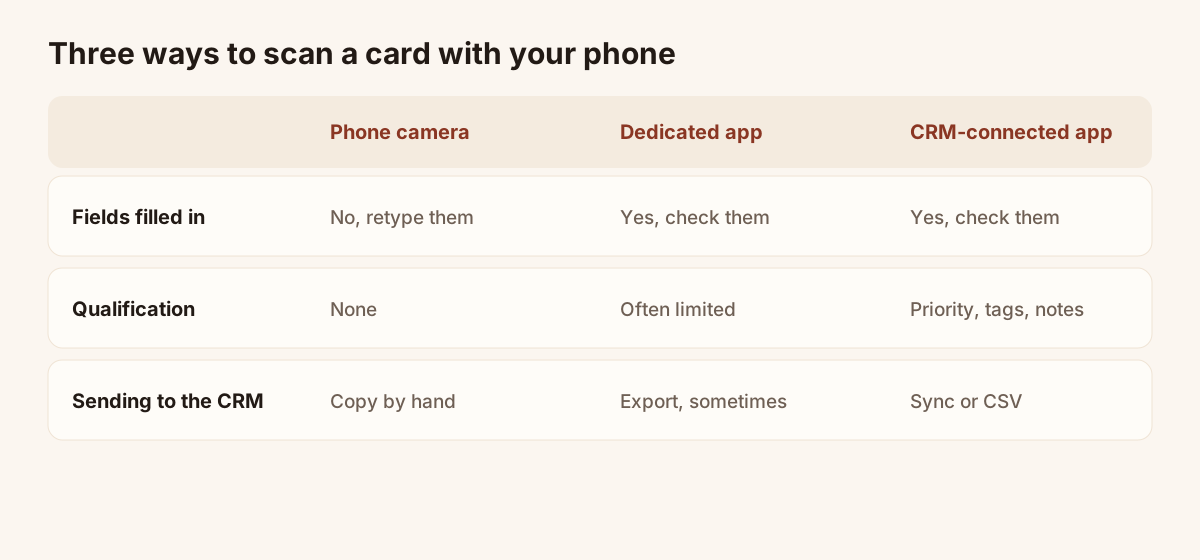
Benefits of each scanning method, in qualitative terms.
The right choice depends on volume. For a card now and then, the camera is enough. Once you receive several a week, retyping becomes the slow part, and a record stuck inside an app becomes a problem. For a rep coming back from a trade show with thirty cards, the third method is the only one that leaves no work for tomorrow.
Which method fits your situation
- You receive a card now and then and want it in your phone: the camera is enough, as long as you accept retyping.
- You want a tidy list without connecting any tool: a dedicated app works, provided you accept going through an export to get the records out.
- You work in a team or already have a CRM: a CRM-connected app stops each rep keeping contacts in a private corner.
Ask one last question: who needs to find this contact in a month? If the answer is "someone other than me", the record has to leave your phone, with the note that explains the conversation.
Step by step with Lead Scanner
Piktechs Lead Scanner belongs to the third group. It is included in Pro (EUR 9 a month, EUR 84 a year) and in Team, with a 14-day trial. These are the steps, as the help centre describes them.
- Open "Lead Scanner". On a phone, it is the round button in the bottom bar.
- Take a photo of the card, or import an image you already have.
- Check the fields that were read. Add a note or a priority if you want to qualify the contact.
- Save. The lead is added to Contacts.
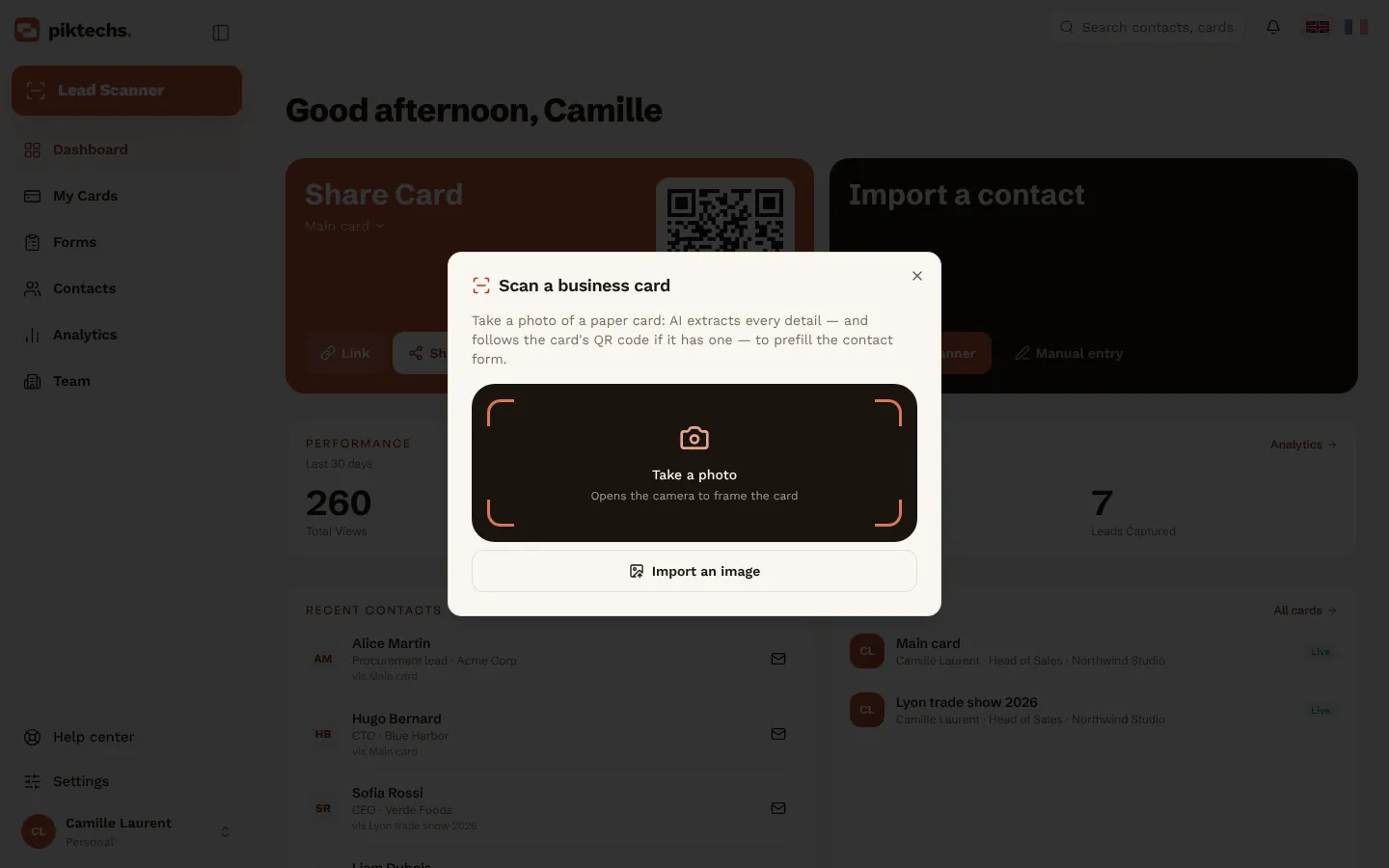
Piktechs screen, sample data.
A few habits help the reading. Lay the card flat on a plain surface. Light it well and fill the frame. Avoid glare: a glossy card under a strip light reads badly. HEIC images are not supported, so if you import a photo, use JPEG.
Lead Scanner does not replace paper cards. Your reps can keep handing them out. It reads the ones they receive. For an overview of the tool, see the business card scanner page.
Scanning a card with no signal: delayed sync
Trade show halls, car parks and client basements often have poor coverage. The help centre is clear on this: leads are kept on your device and sync as soon as the network returns.
In practice, you do not have to wait. Save the card, move on to the next one, and the sending happens later without any action from you. One thing to keep in mind: until the network is back, those contacts exist only on your phone. Before you have a signal again, avoid clearing the phone's data or uninstalling anything.
Check before you save
This is the step people skip, and the one that prevents the most mistakes. Automatic reading sometimes gets it wrong: a letter in an email address, a digit in a phone number, a double-barrelled first name cut in two. Take five seconds per card to check the four fields that matter:
- The name. Are both parts in the right order?
- The email. You will use it to follow up and to spot a duplicate in your CRM.
- The phone number. Check the country code when the card comes from abroad.
- The company and job title. They help you prioritise.
A correction takes one gesture, on the field concerned. While you are there, add a detail the card does not show: a note reading "call back Thursday, wants a quote" is worth more than the name itself when you open the list ten days later.
Sending the contact to your CRM
Once saved, the contact appears in the Contacts list with its source. Three routes are open:
- HubSpot or Odoo, connected natively by a workspace owner or admin. New leads are then sent automatically.
- Zapier or Make, for every other tool. The lead goes through complete, with its tags, notes and source.
- CSV export, always available, for a spreadsheet or an address book. There is no direct connector to Excel or Outlook: the CSV file is the path. The details are in our articles on business card scanner to Excel and on scanning business cards to Outlook.
Piktechs is not a full CRM. Your CRM stays the system of record, and Piktechs feeds it. If you do not have one yet, Contacts and the CSV export are enough to work with. For teams coming back from an event, the same logic is covered in how to collect leads at trade shows.
A last word on habits. Scan the cards the same day you receive them, while you still remember who is who. A stack of cards in a jacket pocket is the surest way to lose the context that made them worth keeping.
Frequently asked questions
Can I scan a business card with the phone camera alone?
Yes, but you get a picture, not a contact. The fields are not read, so you retype them into your contacts. For a few cards that is fine. For more, use a tool that fills in the record.
Does Lead Scanner work without a connection?
Captured leads are kept on your device and sync as soon as the network returns. You can keep saving cards in a poorly covered area.
Does Lead Scanner read organiser badges at trade shows?
No. It reads paper business cards, and it also captures contacts who leave their details on your digital card. Organiser badges are still read by the organiser's own scanner.
What if a field is read wrongly?
Correct it before you save, directly on the record. To limit errors, photograph the card flat, well lit and free of glare, and use JPEG if you import an image.
Read next
 Guide
How to Scan Business Cards Into Your Phone and CRM
Scan paper business cards with your phone camera, check the details, and send each contact to your CRM with notes and a follow-up reminder.
 Article
Business card scanner to Excel: from scan to spreadsheet
Scan business cards, export them as CSV and open the file in Excel without breaking accents. Recommended columns and duplicate removal included.
 Article
Scan business cards to Outlook: import them as contacts
Scan business cards, export them as CSV and import them into Outlook on the web or on desktop, with the field mapping that makes the import work.
Scan your first card today
Pro includes Lead Scanner, forms and Contacts. 14-day trial.