CRM mobile app: features, offline use and integrations
A mobile CRM app lets a salesperson use customer relationship software from a phone: open a record, log a meeting, set a follow-up. Piktechs is not a CRM and does not replace one. It captures and qualifies leads in the field, then feeds your CRM: HubSpot, Odoo or another tool. See the field qualification in Piktechs.
Definition of a mobile CRM app
A mobile CRM app is customer relationship software used on a phone or tablet. It comes in two forms. In the first, the CRM vendor ships a mobile version of its tool, with the full contact base, the opportunities and the history. In the second, a companion app is used only in the field and sends its data to the company’s CRM.
The starting point is therefore not “do we need a mobile CRM?” but “which part of the work happens away from the desk?”. A rep who visits clients, runs a stand or meets prospects at a trade show needs three gestures: save a person, note the conversation, decide the next step. The desktop CRM can store that information. It is rarely open at the moment the information appears.
The CRM as the company’s system of record
The CRM remains the place where the company keeps its accounts, contacts, opportunities and sales history. Management, marketing and customer service draw their data from it. That role comes with rules: required fields, record owners, sales stages. A mobile tool that bypasses those rules creates a second file, so duplicates and gaps.
Effect of mobile on data entry
Mobile changes the moment of entry. A fact noted three minutes after a meeting is precise. The same fact typed in the evening at a computer has already been summarised, sometimes distorted. Mobile also changes the shape of entry: small screen, thumbs, one free hand at best. A good mobile tool therefore offers few fields, choices to tap instead of text to type, and direct access to the record.
Benefits of a mobile CRM in the field
The benefits come from timing and from friction. They are not automatic: a poorly chosen tool brings none of them.
Fresher information
Notes taken just after a conversation keep the detail: the stated need, the deadline, the name of the person who decides. The record is complete before the next meeting starts.
Fewer gaps between the meeting and the CRM
Without a mobile step, information travels through a notebook, a phone gallery or a spreadsheet before it reaches the CRM. Each hop is a chance to lose a lead or mistype an email address. A mobile entry point shortens that path.
Follow-ups that happen
A follow-up set at the moment of entry, with a date and a reason, turns a vague intention into a task. The list of today’s follow-ups becomes the start of the day.
Better preparation for visits
A rep who reads the record in the car park before a visit arrives knowing the last exchange and the commitment made. That reading takes one minute and needs a clear record.
Mobile CRM use cases for sales teams
The use cases fall into three moments: before the meeting, during or right after it, then in the following days.
Entry after a meeting
This is the central use. The rep leaves the meeting, opens the record and saves four items: the person’s contact details, answers to a few qualification questions, a note and a follow-up date. The closer the entry is to the conversation, the more faithful it is. The guide on B2B lead qualification covers the questions to ask and how to set a priority.
Reading before a visit
Before meeting a client, the rep rereads the record: last exchange, contact person, promise made. This takes a minute on a train or in a car park. It needs a readable list and a record that shows the essentials without endless scrolling.
Follow-ups
A forgotten follow-up is a lead lost without noise. On mobile, the reminder reaches the rep wherever they are. Good practice is to set the follow-up at the time of entry, with a date and a reason, rather than rely on memory.
Trade shows, stands and travel
At a trade show the number of meetings is high and the time per person is short. The guide to trade show lead generation covers how to organise a stand. For a rep on the road, the article on a digital business card for field sales shows how to share your details and collect the other person’s in the same gesture.
Mobile CRM app features to expect
Not every feature of a desktop CRM belongs on a phone. The features in the table serve in the field, between two meetings or on a stand, grouped by use.
| Feature | Role |
|---|---|
| Fast contact creation, reading of paper business cards | Save the person without retyping anything |
| Written or voice notes | Keep the content of the conversation |
| Qualification questions, priority and tags (show, sector, product) | Know who to call back first and segment after an event |
| Dated follow-up reminders | Avoid forgotten leads |
| Filterable contact list | Find a person in a few taps |
| Assignment to a rep and simple statistics | Share leads across the team and track their volume by source |
| Export and sync | Feed the CRM without copy and paste |
Features to leave at the desk
Some tasks work better on a large screen: field configuration, report building, bulk import, permission management, database clean-up. A mobile tool that claims to do everything exposes the user to dense screens and handling errors. The test is simple: a feature earns its place on mobile if the rep uses it standing up, between two meetings.
Speed of entry
Speed of entry is a feature in its own right. Test it in a real situation: how many taps between opening the tool and saving a complete lead? If the answer is more than a few taps, the tool will not be used when the stand is full or the next meeting is waiting.
Mobile CRM offline: how it works and where it stops
Places where selling happens do not always have signal: exhibition halls, basements, rural areas, lifts. A mobile tool has to plan for a lost connection.
The offline principle
The principle is a queue. Information is saved on the device, then sent when the network returns. The user loses nothing and redoes nothing. For a rep in a crowded hall, the difference is visible: the lead is entered, the screen confirms, the upload waits.
Offline in Piktechs
In Piktechs, leads captured without signal are kept on the device and sent when the network returns. The Lead Scanner follows the same rule. When a visitor fills in the form on your card without signal, the answer is queued on their phone and sent later. Contacts already loaded remain readable.
Questions to ask about any tool
Ask three questions before choosing a tool, whatever the product:
- Does entering a new lead work without signal?
- Do contacts already viewed stay readable without signal?
- Does sending resume by itself when the connection returns, with no action from the user?
If any answer is no, test the tool in flight mode before imposing it on the team.
Mobile CRM or companion app that feeds the CRM
This distinction drives the rollout. A full mobile CRM reproduces the CRM on a phone. A companion app covers the field and passes its data to the existing CRM. The two meet different needs.
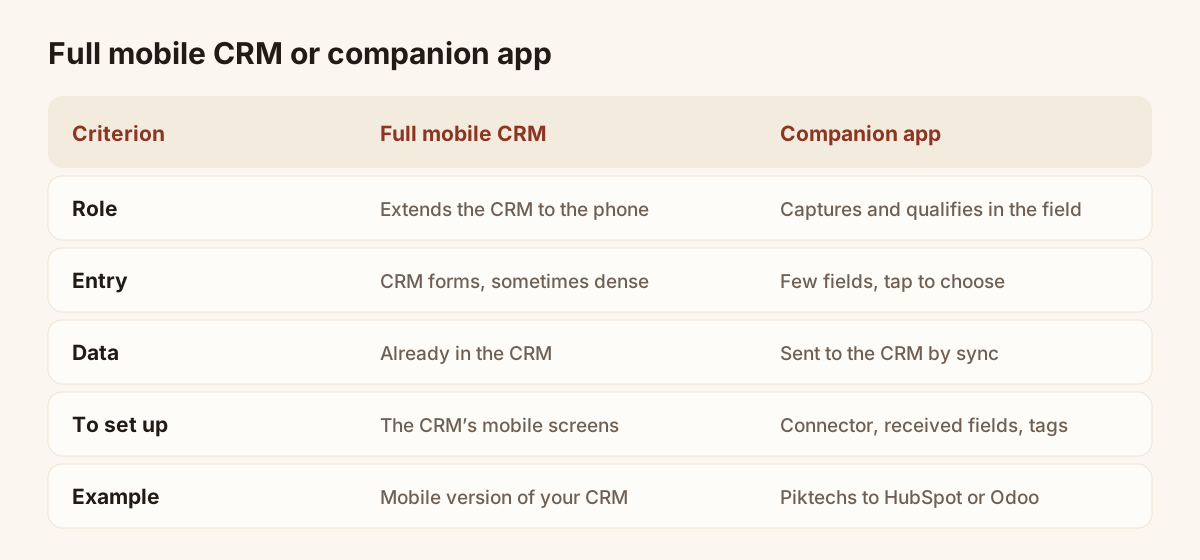
Two approaches to mobile for sales teams.
The full mobile CRM
It suits a team that already works in a single CRM and wants mobile to extend the desktop: reading accounts, following opportunities, updating stages. The advantage is the absence of transfer, since the data is already in the system. The limit is weight: the desktop CRM was designed for long forms, and its mobile version often inherits that density.
The companion app
It suits a team that captures many contacts away from the desk and finds the CRM slow to handle in the field. The app offers few fields, everything is built for fast entry, and the data is then passed to the CRM. The advantage is speed of entry. The limit is the transfer: it has to be set up, and the fields that arrive have to be checked.
Where Piktechs sits
Piktechs is a companion app. It is not a CRM and it does not replace your CRM. It captures the contact in the field, lets the rep qualify it on the spot, then sends a clean lead to HubSpot, Odoo or any tool reachable through Zapier or Make. Your CRM stays the system of record: owners, sales stages, reports and history stay there. Without a CRM, the Contacts list and CSV export are enough to work, without claiming to be a full CRM.
This position has a practical consequence. Piktechs does not ask you to migrate your data, train the team on a new CRM or change your reports. It adds an entry step where the CRM does not reach, and leaves the rest unchanged.
Capture, qualify, sync: the path of a lead with Piktechs
Piktechs organises field work in three verbs, in this order: capture, qualify, sync.
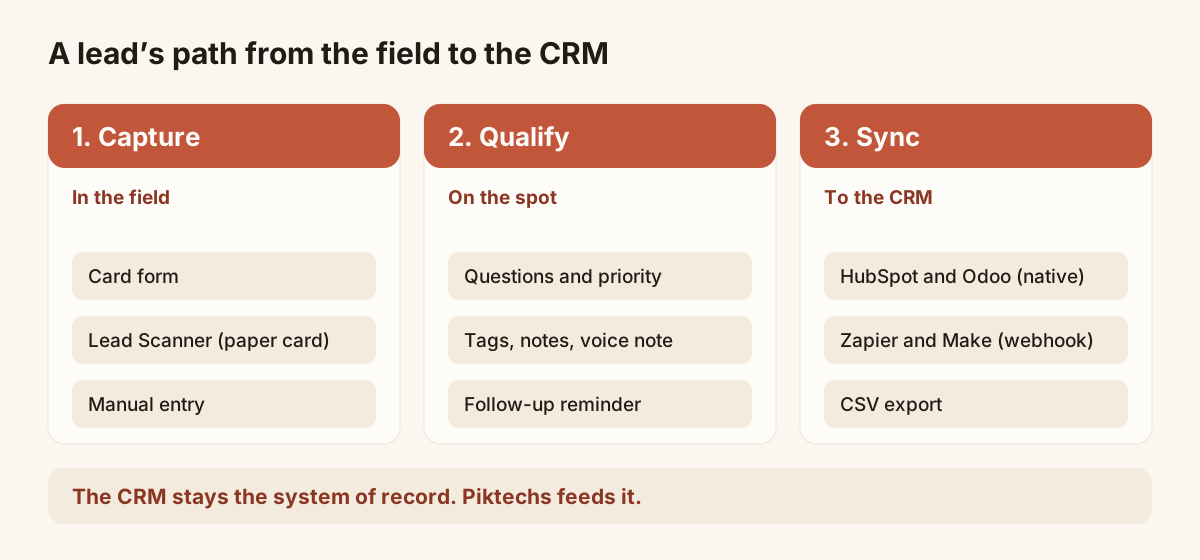
The three steps between the field and the CRM.
Capture
The lead comes in through three routes, into one list. The form on your digital card, shared by QR code, NFC, link or email signature, records the person’s details and answers. The Lead Scanner reads a paper business card you receive: one photo, and the record is created. Manual entry covers the prospect met on the phone or in a corridor. The article on scanning a business card with a phone describes the conditions for a good photo.
Qualify
On the record, the rep answers your own qualification questions, sets a priority (high, medium or low), adds tags, writes a note or records a voice note, then sets a follow-up reminder. The guide to scanning business cards explains how to process a pile of cards after a show without losing information.
Voice notes are recorded, not transcribed. They last up to two minutes and can be played back from the record. If your process needs text, write a note.
Sync
HubSpot and Odoo are connected natively. Zapier and Make go through a webhook and open the door to many other tools. CSV export is available at any time. New leads are sent automatically once the connection is made, and the sync command sends existing contacts to HubSpot or Odoo.
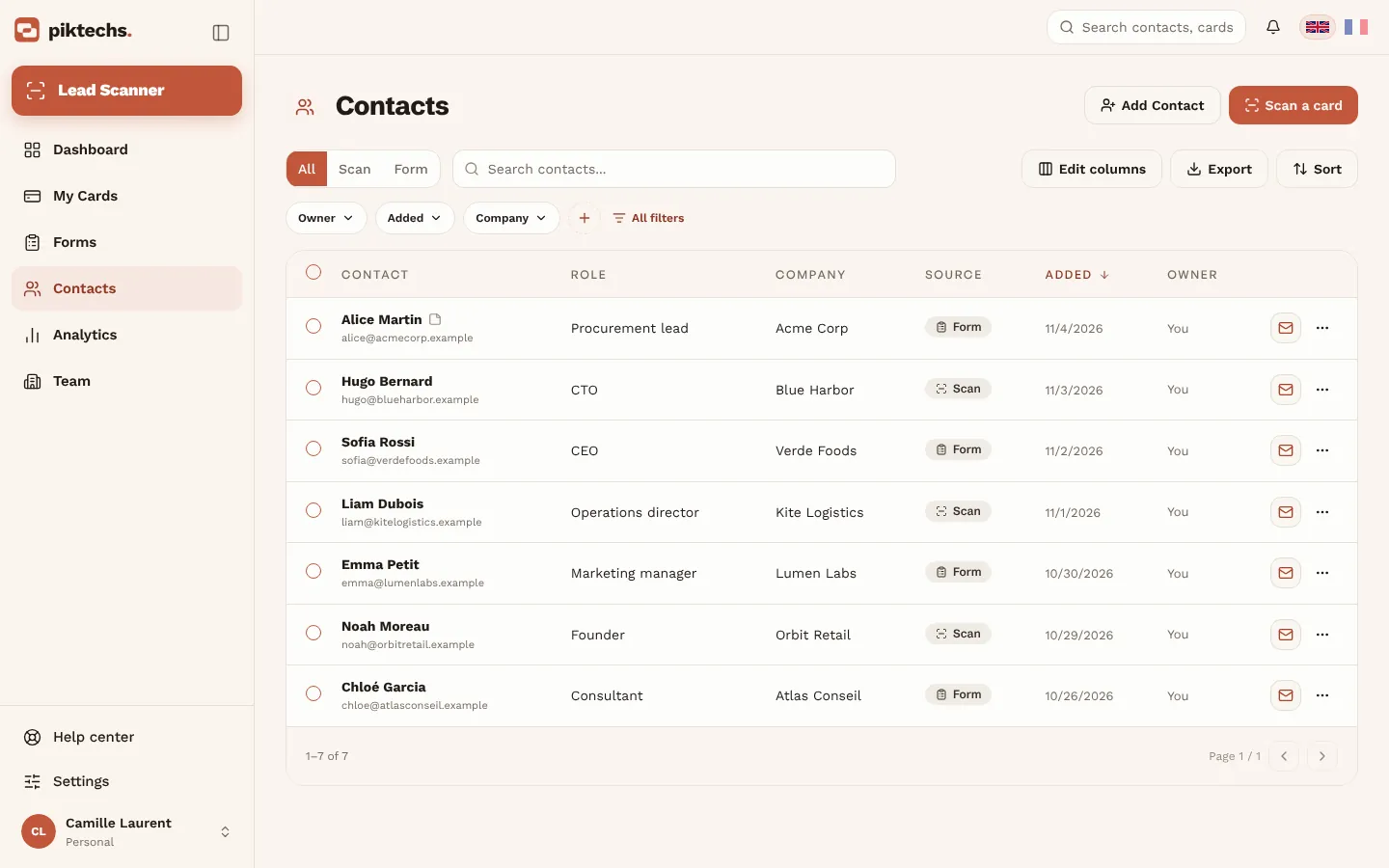
Piktechs screen, sample data.
Data quality in a mobile CRM app
Field data is fresh, but it is also exposed to errors: typos, empty fields, duplicates, unreadable notes. A few rules limit these flaws.
Cut the number of fields
Every extra field slows entry and raises the number of fields left empty. Keep the fields that decide the next step: need, deadline, decision maker, budget depending on your sales method. The rest can be completed later, at the desk.
Prefer choices to free text
A question with three answers (yes, no, unknown) takes one second to tap and compares easily from one lead to the next. Free text is slow to type and hard to filter. Keep free text for the note, and give every other item answers to choose from.
Read instead of retyping
Retyping a business card introduces errors. The Lead Scanner fills the fields from the photo, and the rep checks the values before saving. Always check the email address and the phone number: automatic reading can fail on a fancy font or a dark card.
Limit duplicates
The same prospect can be captured twice, by two reps or through two routes. Agree a simple rule: check the list before creating a record, and let the CRM deduplicate on arrival under its own rules. Duplicate control belongs to the CRM of record, not to the field tool.
Date and assign every lead
A record with no source and no date loses value: nobody knows whether the contact came from a show, a form or a call. In Piktechs, every lead carries its source and date, and every contact has an owner. In a team, assignment to a member or a group prevents a lead from sitting without an owner.
One person in charge of the data schema
Name one person, often the CRM owner, to decide the qualification questions, the allowed tags and the fields sent on. Without that decision, each rep invents their own tags and the CRM receives values that cannot be compared.
Mobile CRM integrations: native, webhook, CSV export
A field tool has value only if its data reaches the CRM without effort. Three mechanisms exist.
| Mechanism | Principle | Typical use |
|---|---|---|
| Native connector | The tool connects directly to the CRM | HubSpot and Odoo with Piktechs |
| Webhook through Zapier or Make | The lead goes to an automation tool, which routes it to the CRM | Other CRMs, databases, messaging tools |
| CSV export | A downloaded file imported by hand | No CRM, or a one-off batch |
Native connector: HubSpot and Odoo
The native connector needs a one-off setup. For HubSpot, an owner or admin creates a private app with the contacts scope, copies its access token, then pastes it in Team, Integrations. Piktechs contacts are then created or updated in HubSpot. HubSpot and Odoo receive the name, email address, phone, company and job title, plus the message if the field is mapped.
Webhook through Zapier and Make
Zapier and Make receive the full lead: source, tags, notes and form answers. They serve any destination without a native connector. Piktechs has no native Salesforce connector: a team on Salesforce goes through Zapier or Make. The scenario is built inside the automation tool, with its own limits and its own cost.
CSV export
CSV export of the Contacts list is available at any time. It suits a team without a CRM or a one-off send, for example the batch of leads from a show. Two limits matter. Piktechs does not import a CSV file of contacts: exchange runs one way, from Piktechs to the outside. And the export file has no column for phone, priority, tags or notes: if those matter, use the HubSpot or Odoo sync, or Zapier or Make, which pass the full lead. The article on exporting business cards to a spreadsheet covers the file route.
Choosing the route
If your CRM is HubSpot or Odoo, take the native connector. If it is another tool, take Zapier or Make. Without a CRM, work from Contacts and export when you need to. In every case, test with five or six dummy leads before opening the tool to the team, and check the fields received on the CRM side.
Rolling out a mobile CRM app to a sales team
A mobile tool rarely fails for technical reasons. It fails because it does not fit the reps’ routine. Rollout is prepared like a light change programme.
Rollout steps
- Set the scope. List the situations where the tool is used: show, client visit, call. State the tasks that stay in the CRM.
- Fix the qualification questions. Three to five questions, worded the same way for everyone. The CRM owner approves the fields that will be sent on.
- Connect the CRM. An owner or admin sets up the sync, then tests with dummy leads.
- Create the team workspace. Invite the reps by email, assign roles and, on the Team plan, apply the brand kit to the cards.
- Train in context. A twenty-minute session on a real case beats a manual. Each rep enters one lead from start to finish.
- Set a time rule. For example, qualify every lead the same day and set a follow-up at entry.
- Measure and adjust. After a first event, reread the list: empty fields, inconsistent tags, late follow-ups. Correct the questions.
Permissions and roles
On the Team plan, each lead is assigned to a member or a group, and roles decide visibility. Each rep sees their own contacts and admins see everything. This rule stops a rep from browsing a colleague’s records and makes it clear who follows up which lead.
Plans and trial
The 14-day trial on Pro and Team lets a small team test everything before deciding. Pro costs EUR 9 a month or EUR 84 a year, with 5 cards, forms, Contacts, the Lead Scanner and statistics. Team costs EUR 15 per seat per month, from 3 seats, with 5 cards per seat, the brand kit, roles and lead assignment. The free plan does not include Contacts or sync. The details are on the pricing page.
Driving adoption
Show the team the immediate benefit: today’s follow-up list, the complete record before a visit, the end of a notebook to copy out. A manager who reads the lead list every week, and says so, gets more entries than a written instruction.
Security and GDPR for a mobile CRM app
A phone travels, gets lost, gets lent. Prospect data on it faces risks that a desktop computer knows less. The principles below are general and do not replace the advice of your data protection officer or a lawyer.
Secure the device
Require a screen lock by code or biometrics on phones used for entry. Turn on the storage encryption the system offers, and keep the option to wipe the device remotely. Forbid sharing the phone with third parties during shows.
Control access
Give each rep access to their own contacts and keep the overview for admins. When a rep leaves the company, remove their access on the day they leave and reassign their leads. In Piktechs, the roles and permissions of the team workspace set these rights.
Consent and information for individuals
A person whose details you record must know who holds them and why. In Piktechs, the visitor’s consent to your offers is recorded with the lead when it comes through the form on your card. For a paper business card you receive, inform the person in your first message. The legal basis for B2B prospecting and retention periods depend on your situation: have a lawyer validate them.
Hosting and exit of data
Piktechs data is hosted in the European Union. CSV export of your contacts is available at any time, so you are not locked into a tool. Piktechs does not sell your data. An account can be deleted from settings: deletion permanently erases the cards and contacts.
Common mistakes with a mobile CRM app
- Choosing a tool for its feature list. A long list says nothing about speed of entry. Test one lead from start to finish, standing, with one hand.
- Duplicating the CRM with no rule. Two files that evolve in parallel produce gaps. Decide where the record of reference lives, and move data in one direction only.
- Multiplying fields. More than ten required fields on mobile guarantee empty or rushed records.
- Forgetting to test offline. The problem shows up at the show, at the worst moment. Try flight mode before leaving.
- Letting everyone invent tags. With no shared list, segmentation becomes impossible. Fix the tags before the event.
- Not setting a follow-up at entry. A lead with no follow-up date sleeps. Set the follow-up while memory is intact.
- Waiting for the return to the office to enter data. The note loses precision. Enter it within minutes of the meeting.
- Neglecting phone security. A device with no lock exposes every lead it holds.
Frequently asked questions
How is a mobile CRM app defined?
It is the use of customer relationship software on a phone: open a record, log a meeting, set a follow-up. It can be the mobile version of a full CRM or a companion app that feeds the company’s CRM.
Is Piktechs a mobile CRM app?
No. Piktechs is not a CRM and does not replace yours. It captures your leads in the field, qualifies them on the spot with priority, tags, notes and reminders, then syncs them to HubSpot, Odoo, Zapier or Make. Without a CRM, Contacts and CSV export are enough to work.
Does a mobile CRM work without signal?
It depends on the tool, and it should be tested in flight mode. In Piktechs, leads captured without signal stay on the device and go out when the network returns. Contacts already loaded remain readable.
Does Piktechs connect to Salesforce?
There is no native Salesforce connector. A team on Salesforce goes through Zapier or Make, which receive the full lead with its source, tags, notes and form answers. HubSpot and Odoo are connected natively.
Are voice notes transcribed?
No. They are recorded as they are, up to two minutes, and can be played back from the contact record. You can also type a written note.
Read next
 Article
How to Connect Your Digital Business Card to HubSpot and Your CRM
Send every contact from your digital business card to HubSpot, Odoo or another CRM through Zapier or Make, with the source, notes and consent attached.
 Article
How to Track Who Viewed Your Digital Business Card
See how many people viewed and saved your digital business card, how many became leads, and why a view does not name the visitor.
Scan your first card today
Pro includes Lead Scanner, forms and Contacts. 14-day trial.